

Google search console or Webmaster tools are an essential component for people working in SEO. It provides you the details about website functionality, health, and more. Adding a user into the account is the primary step for using this tool. You can add owners and users in the account based on requirements.
When you set up the new account in Google search console, you will need to prove that you own the website, and after the approval, you can access the tool. The owner has complete access to the account. If you are hiring someone to help you with your website and its traffic, they will require access to the account.
However, it will only show the website data collected by Google if you do not know how to add a new user and give permissions, then read it carefully.
Permission Levels in Webmaster Tools
Before granting someone access to your GSC account, you must know about the permitted actions to the new users. Well, there are three different levels of permission. The first one is the Owner, who has complete access and can impact the website’s appearance in search results.
The other one is a user who can only perform the tasks permissible to him. It has two levels that are full user and restricted user
Full users can access data similar to owners, but they do not have permission to access the website and add/remove users or Owners in the account while restricted users can’t make any changes.
Should You Grant Restricted or Full Access?
Most of the cases require the users to read the data and perform plenty of actions on it. So the user must get permission with restrictions. While in some cases, you will be required to give full access to the user. Here are some of the reasons which justify why to provide full access to a user.
- If the user requires access to fetch and render for submitting URLs.
- If they needed to use the Disavow tool
- If submitting sitemaps are required
You can see the image below to know about the permission given to the Users and Owners.
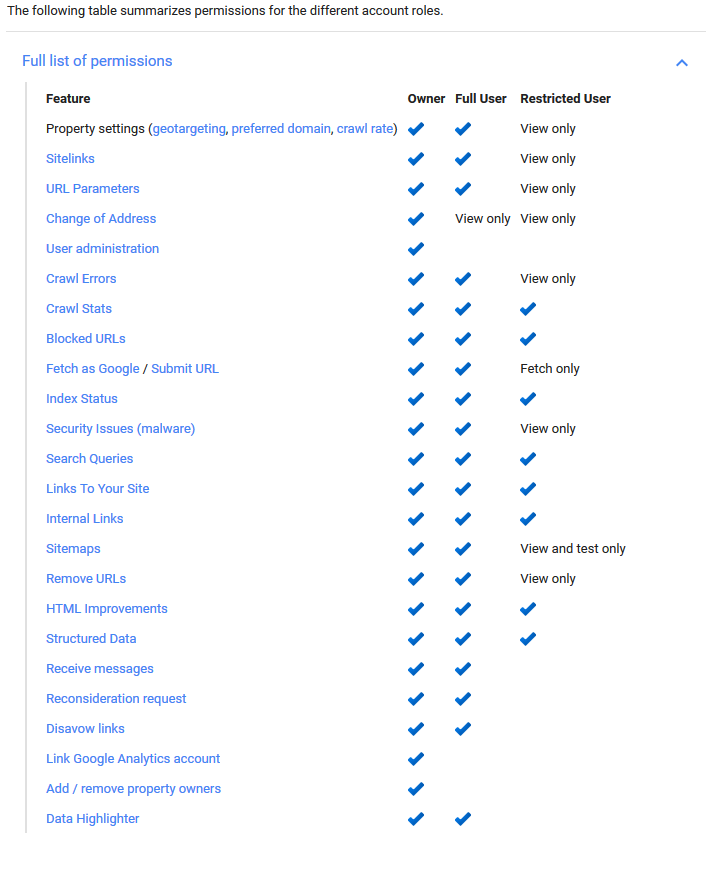
A complete guide to adding Owner to Google Search console account
- If the user requires access to fetch and render for submitting URLs.
- First of all, you need to log in to the Google Search Console account.
- On the left side, you will see three lines i.e., menu icon. Click on the menu. If you are not getting the menu icon, then click on the hamburger icon given next to the Google search console.
For more info, click WinnipegTech and get detailed information about Google Search console and its ways to add users.